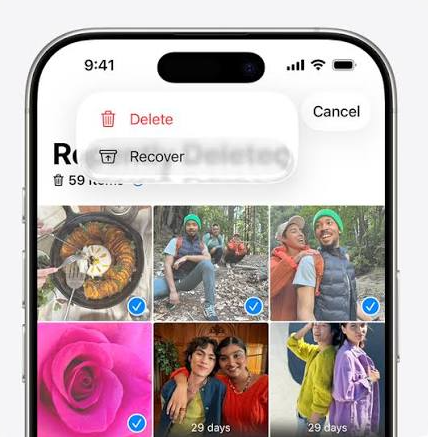
You’re cleaning up your gallery, selecting pictures you no longer need, when you realize an important photo went with them. Before downloading a recovery app, check the trash folder in the app you used to delete it.
A photo that’s still in Recently Deleted or Trash can usually be restored directly. If it isn’t there, the next step is to look for another copy: a backup, computer folder, message attachment, or cloud storage account.
The order matters. Here’s how to work through your options on iPhone and Android without resetting your phone or paying for an uncertain recovery promise.
First, Identify Where the Photo Disappeared
One phone can have several apps managing pictures: Apple Photos, Google Photos, Samsung Gallery, and messaging apps. Their libraries and trash folders aren’t necessarily the same.
Before changing anything, answer three questions:
- Which app did you use to delete the photo?
- When did you delete it?
- Was it backed up or copied elsewhere beforehand?
Don’t empty any trash folders while you’re searching. Avoid resetting your phone, too. A factory reset isn’t a first step for recovering a missing picture.
For more practical help with apps and devices, explore Enzvia’s Internet guides.
How to Recover Deleted Photos on iPhone
Check Recently Deleted
Apple keeps deleted photos in Recently Deleted for 30 days, unless you permanently remove them sooner.
In Photos:
- Open your collections and find Utilities.
- Tap Recently Deleted.
- Unlock the album if prompted.
- Select the photos you want.
- Choose Recover, then confirm.
The exact layout depends on your iOS version. Apple’s official recovery instructions also explain how to restore photos using a Mac or iCloud.
After restoring an image, look for it around its original date in your library. Recovering a photo doesn’t necessarily make it the newest picture in your timeline.
Check Hidden Photos, Too
A picture missing from your main library hasn’t necessarily been deleted.
Check Hidden, then confirm you’re using the correct Apple Account. If you use a Shared Library, check which library view is selected.
You might also see a Recovered collection when Photos identifies files on your device that aren’t part of your library. This isn’t a second trash folder that automatically holds every deleted photo.
Check iCloud Without Assuming It’s a Separate Backup
If you used iCloud Photos, check your library and Recently Deleted through your account.
Keep this distinction in mind: iCloud Photos syncs deletions across connected devices. A picture deleted on your iPhone can also disappear from your Mac or iPad.
Having iCloud enabled doesn’t mean an earlier version of every photo is kept indefinitely.
How to Recover Deleted Photos in Google Photos
On Android, start with Google Photos if that’s where you deleted the image.
- Open Google Photos.
- Tap Collections, then Trash.
- Touch and hold a photo.
- Select any other pictures you want to recover.
- Tap Restore.
The current Google Photos recovery documentation specifies a 30-day trash retention period. Check the remaining time shown for your items and restore them promptly.
Once the process finishes, open a few pictures to confirm you’ve recovered the right files.
Make Sure You’re in the Right Account
Tap your profile picture and check the account address. If you use multiple Google Accounts, some pictures may have been backed up to a different one.
Also check Archive and, if you use it, Locked Folder. Moving a picture out of the main photo view isn’t the same as deleting it.
Try searching by location, person, or approximate date. An imported image with an incorrect timestamp may appear somewhere unexpected in your timeline.
On Samsung, Check Gallery Trash
A Galaxy phone may have both Google Photos and Samsung Gallery. Checking only one could mean overlooking a copy available in the other.
To restore from Gallery:
- Open Gallery.
- Open the menu.
- Select Trash.
- Choose the photos.
- Tap Restore.
Samsung specifies a 30-day retention period for Gallery Trash. Menu names and placement can vary by device and software version.
On another Android phone, look for the equivalent feature in the manufacturer’s gallery app. Don’t assume every Android device follows the same steps.
The Photo Isn’t in Any Trash Folder. Where Should You Look?
Now check for copies that existed before the deletion.
| Location | What to Look For |
|---|---|
| Computer | Imported photos and backup folders |
| External drive | Manually copied photo libraries |
| Messaging app | Pictures sent or received in conversations |
| Another cloud service | Files uploaded before the deletion |
| A friend or relative | A copy you previously shared with them |
A picture sent through a messaging app may have been compressed. It can still preserve the memory, but it may not replace the full-resolution original.
If you’ve recovered photos of documents, you can organize JPG or PNG copies using our free images-to-PDF converter. Keep the original images separately: making a PDF doesn’t recover a deleted picture or replace a backup.
Can an Older Backup Help?
That depends on what it contains, when it was created, and how the backup service works.
On iPhone, photos already synced through iCloud Photos aren’t duplicated in the device’s daily iCloud backup. Restoring that backup therefore doesn’t guarantee those pictures will return.
If iCloud Photos wasn’t enabled, an earlier backup may contain the images.
Before considering a full restore, establish what the backup could actually include. Restoring can replace the phone’s current state with an older one. Preserve recent data first, and ask the manufacturer’s support team for guidance if needed.
The same general caution applies on Android: “my phone is backed up” doesn’t confirm that every picture from every app was included.
Should You Install a Photo Recovery App?
Start with built-in recovery options and existing copies. A third-party app can’t guarantee it will retrieve a permanently deleted original.
Before paying, examine what its preview actually shows:
- Is it the complete image or just a thumbnail?
- Is it a deleted file or a picture that’s still accessible?
- Is the resolution useful for your needs?
- Are subscription and billing terms clearly explained?
Seeing a thumbnail isn’t proof that the original file has been successfully recovered.
Avoid major technical changes offered without a clear explanation, especially changes to your phone’s security protections. If the photos are particularly valuable, get an assessment before trying multiple tools.
After Recovery, Keep a Copy You Control
Open the restored files and check their quality. Then copy important images to a separate location and open those copies to confirm they work.
If you want to reuse a recovered photo in a post or design, work from a duplicate. Our guide to creating your first design with Adobe Express walks through that process while keeping your starting files intact.
For the future, remember this distinction: a synced library makes photos easier to access; an independent copy also helps protect against some accidental deletions.
Check trash folders first, confirm your accounts, then look for existing copies. That approach can save you from paying for a recovery tool when the picture is still within reach.
This guide could help someone save an important photo. Share it so they know where to look before emptying their trash.