Your phone tells you to clear some space just as you’re about to record a video. You open Google Photos, but one question stops you: if you remove the pictures from your phone, will they stay in your account?
“Free up space on this device” removes local copies that have already been backed up to Google Photos. It lets you reclaim phone storage while keeping the backed-up files in your Google Account.
You still need to choose the correct command and verify your backups first. On an iPhone, iCloud Photos adds another important consideration.
If you’ve already deleted a picture by mistake, start with our guide to recovering deleted photos on iPhone and Android. This guide focuses on checking your setup before cleaning up.
A Full Phone and a Full Google Account Are Different Problems
Your phone has local storage used by apps, downloads, photos, and videos.
Your Google Account has a separate storage allowance shared across services including Google Photos, Google Drive, and Gmail.
Freeing up phone storage doesn’t automatically free up Google Account storage. Copies kept online continue to use the storage applicable to your account.
Before doing anything, identify where the warning appears:
- In your phone’s settings: Check local storage usage.
- In Google Photos or your Google Account: Review Google storage.
- In both places: Address the two problems separately.
This distinction helps you avoid deleting online files when you only wanted enough room to record another video.
1. Check Your Account and Backup Status
Open Google Photos and tap your profile picture or initial.
First, check the account address. If you use several Google Accounts, make sure you’re viewing the one containing your backups.
Next, check the backup status. Seeing a picture in Google Photos doesn’t necessarily mean it’s already backed up online. The app can also display files stored only on your device.
For important memories, open the item’s information and check its backup status. You can also look for those pictures in Google Photos through a browser signed in to the same account.
On Android, review the device folders you want to keep. Images received through messaging apps or saved by other apps may not follow the same backup settings as your camera pictures.
If a backup is pending or your account is out of storage, resolve that before cleaning up.
2. Use the Command Designed to Clear Device Storage
On Android:
- Open Google Photos.
- Tap your profile picture or initial.
- Select Free up space on this device.
- Review the amount of space shown.
- Confirm after checking your backups.
Google’s official instructions for freeing up device space explain what the operation changes.
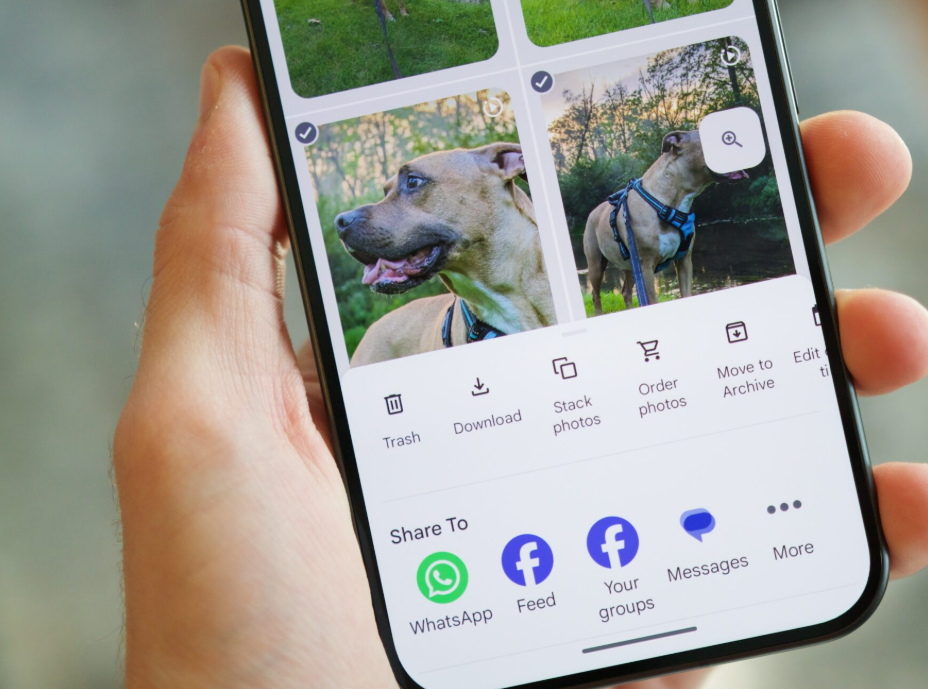
Don’t substitute the regular Delete command for this feature. Deleting pictures from your Google Photos library can also remove account copies and affect devices where backup is enabled.
Read the confirmation carefully. It should match your intention to remove copies from the device.
3. On iPhone, Check iCloud Photos Too
The process also starts in Google Photos on an iPhone: open your profile and choose the option to free up device space.
However, your iPhone may use two services at once: Google Photos and iCloud Photos.
When iCloud Photos is enabled, deleting an item from the Apple photo library also deletes it from iCloud and other devices syncing with the same Apple Account. Apple explains this behavior in its guide to managing iCloud storage.
Before confirming, decide what you want to preserve:
- If you want to keep pictures in Google Photos, verify that they’re backed up there.
- If you also want to preserve your Apple/iCloud photo library, don’t assume removing pictures from the phone is independent of that synchronization.
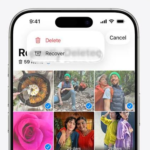
Google’s instructions then call for deleting the relevant items from Recently Deleted in Apple Photos to reclaim the storage.
Don’t empty the entire album without reviewing its contents. It may contain other pictures you wanted to recover. Permanently deleting them removes the option to restore them from that album.
4. Know Where to Find Your Photos After Cleanup
Backed-up copies remain accessible in Google Photos when you’re signed in to the correct account.
Files removed from the phone won’t remain available in the same way through its native gallery. You may therefore see a picture in Google Photos but no longer find it in Apple Photos or another gallery app.
That can change how you share images. If another app only looks for local files, you may need to download the picture before using it.
Prepare any images you’ll need without a connection. After removing local copies, don’t count on accessing your entire library during a flight or somewhere without service.
Keep important travel documents accessible separately from your collection of memories.
5. Why Doesn’t Google Photos Offer to Remove Everything?
Google Photos doesn’t necessarily process the entire library in one operation. Recent items may remain on the device, and files that haven’t been backed up shouldn’t be treated as disposable local copies.
If the suggested amount seems small, check:
- Whether backup has finished.
- Whether the relevant folders are included.
- Whether those files actually occupy phone storage.
- Whether something else is using most of the space.
Downloaded streaming videos, games, and message attachments can also take up substantial storage.
Don’t start deleting at random if the result seems disappointing. Return to your phone’s storage settings to identify what’s still using space.
6. Identify the Problem Before Buying More Storage
A full phone doesn’t automatically mean you need to buy additional Google storage.
If your photos are already backed up and your account has room, removing local copies may address the problem.
If your Google Account is full, review what’s using it and what you actually want to keep. An additional subscription may be an option, but it doesn’t directly solve every local storage problem.
Our guide to reviewing subscriptions and canceling those you no longer need can help you assess the recurring cost before adding another service.
For irreplaceable memories, consider keeping a separate copy on another storage device, then verify that those files open correctly.
A Simple Routine Before Every Cleanup
Get into the habit of checking your account, confirming that backup has finished, and verifying important files. Then use the appropriate feature and check the result in both Google Photos and your phone’s storage settings.
On an iPhone, always include a check of iCloud Photos and the Recently Deleted album.
Explore our Internet guides and useful app discoveries for more ways to understand the tools you already use.
The right action depends on what you want to remove: a phone copy, a file in your Google Account, or an item in your Apple photo library. Make that decision before confirming a deletion.
Know someone whose phone is always running out of space? Share this guide to help them check their backups before cleaning up their gallery.