You find a useful guide, a product review, or information about a museum abroad. There’s just one obstacle: it’s written in a language you don’t know well. Before copying every paragraph into another tool, check what your browser can do.
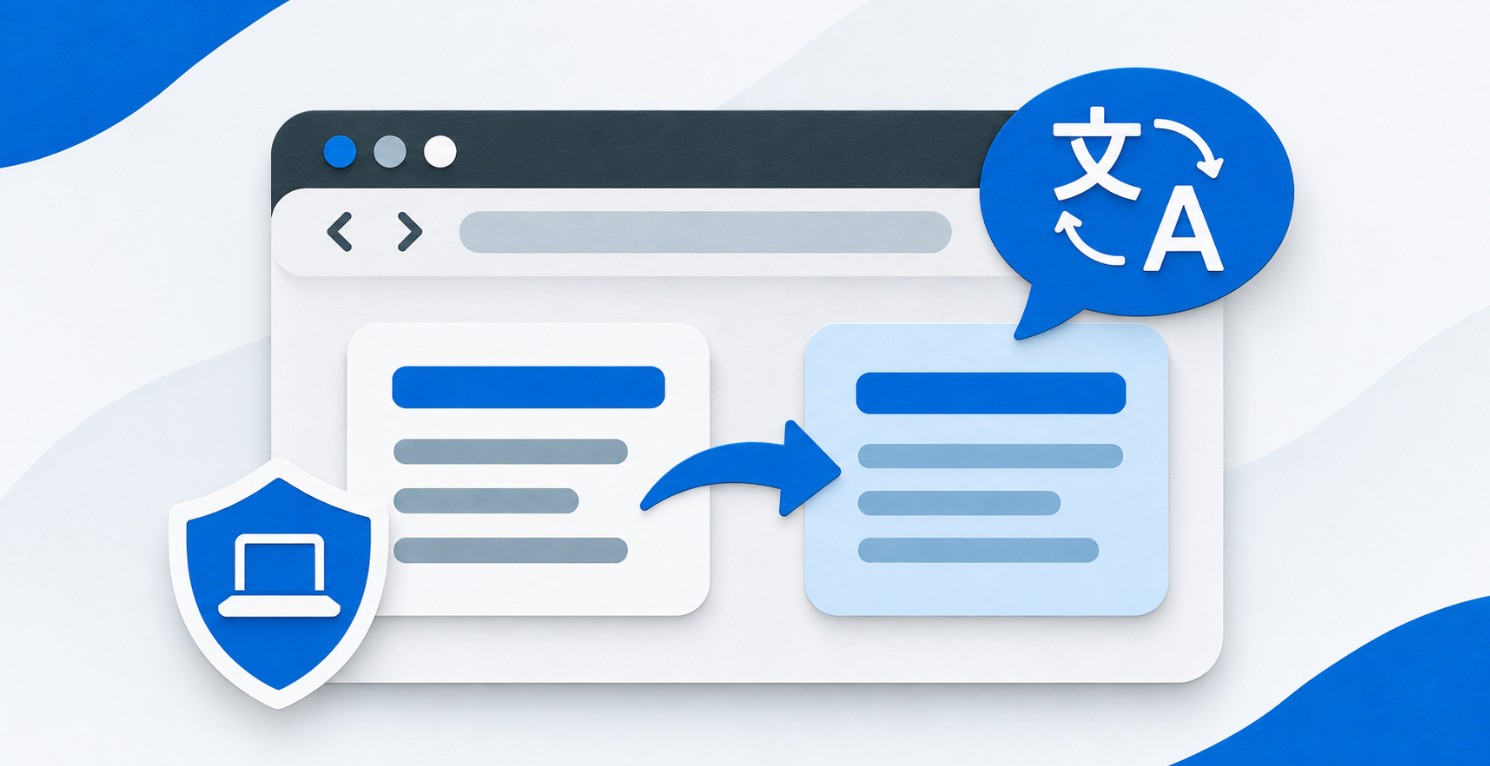
Firefox includes a free translation feature for webpages and, on desktop, selected passages. For supported languages, translation happens on your device rather than sending the text to a cloud-based translation service.
Here’s how to use it, return to the original content, and prepare for reading when your connection may be unreliable. For more everyday digital tools, explore our Internet guides and discoveries.
Translate an Entire Page on Desktop
Open the webpage in an up-to-date version of Firefox. When translation is available, the browser may offer it automatically.
Otherwise:
- Open the Firefox menu.
- Choose the option to translate the page.
- Check the proposed languages.
- Start the translation.
You can also access the controls through the translation icon in the toolbar. To return to the original text, open that panel and select Show original.
Labels may vary with your interface language. The official Firefox Translations documentation explains the available controls and settings.
First, make sure Firefox has identified the source language correctly. Pages containing several languages, proper names, or very little text may need a closer look.
Translate a Passage Without Changing the Whole Page
On desktop, highlight the text, right-click, and choose the option to translate your selection. A pop-up displays the result.
This is especially useful when you understand most of an article but get stuck on a sentence. You can keep the surrounding context visible while checking the difficult passage.
Consider this hypothetical example: you’re comparing two devices on a foreign-language website. You understand the dimensions and general specifications, but you’re unsure about the sentence describing included accessories. Translating that section may be enough to continue.
For an ambiguous passage, select the complete sentence instead of an isolated word. That gives you more context when interpreting the result and comparing it with the original.
What On-Device Translation Changes
Mozilla explains that language models are downloaded into the browser and translation is processed locally. This avoids sending the webpage’s text to a remote service for translation. Firefox’s overview of local translation explains the approach.
That describes the translation process, not everything involved in browsing. The website you’re visiting still makes its own connections and follows its own data practices.
Another useful distinction: a translation isn’t a summary or a fact-check. It helps you read what the page says; it doesn’t confirm that the information is accurate.
If you’re exploring different tools, our explanation of issues affecting AI-based translation systems offers another perspective on how these systems work. It isn’t a Firefox test or a direct performance comparison.
On Mobile, Check Which Controls Are Available
Firefox also offers translation on compatible mobile versions. The controls and capabilities aren’t necessarily identical to those on desktop.
On Android, look for the translation icon or the corresponding option in the app menu. If it’s missing, check for updates. Availability also depends on device compatibility.
Words inside an image aren’t handled like ordinary webpage text. A photographed sign, scanned menu, or text embedded in a video requires a different approach.
A useful first check is whether you can select the words on the page. That can help you distinguish text from an image, although it doesn’t guarantee that translation will work.
Offline Translation: Prepare Both the Languages and the Content
Once the necessary language files are installed, Firefox can translate supported content without an internet connection.
But these are two separate requirements:
- Having the resources needed for translation.
- Having access to the page you want to read.
Downloading a language model doesn’t automatically make a website available offline.
Before traveling, prepare the content you need and check that it opens without a connection. Test this before leaving so you know what is actually accessible.
For a trip, prioritize practical information: complete addresses, arrival instructions, opening hours, or ticket collection details. Keep proper names and contact information in their original form, too.
If you’re organizing JPG or PNG screenshots, our free images-to-PDF converter can combine them into one document. It helps with organization, but it doesn’t translate images or extract their text.
What to Check When Translation Doesn’t Appear
Work through these checks:
- Is Firefox up to date? Start here before changing other settings.
- Is the language supported? The list evolves, and not every language or translation direction is available.
- Have you created an exception? A preference may prevent translation offers for a particular language or website.
- Does the page contain several languages? Check the selected source language before trying again.
- Is the content text or an image? Webpage translation doesn’t replace optical character recognition.
Next, try a simple page in the same language. If it works, that helps distinguish a general problem from an issue with the first website.
Avoid installing several translation extensions at once. That makes troubleshooting harder because you won’t know which tool is changing the page.
Keep the Original for Details That Matter
Automatic translation can be convenient for exploring an article or understanding a general description. Some details deserve a more careful comparison.
On a product page, check dimensions, units, included accessories, and return conditions. For a reservation, keep the original dates and address. A negative phrase or qualifying condition can change the meaning of an offer.
If a passage determines your decision, don’t rely on wording that seems unclear. Compare it with the original, look for an official version in your language, or ask the organization for clarification.
This is particularly useful when a familiar-looking word has a different meaning in context. Reading the surrounding sentence can help you spot a result that doesn’t quite fit.
A Simple Way to Get Started
Choose a short article about a subject you already know. Translate it, return to the original, then try translating a selected passage on desktop.
You’ll learn where the controls are without immediately depending on the result for an important task. You’ll also discover which approach suits you: translating the whole page to explore, or checking a few sentences to keep reading.
Firefox can become a useful shortcut to a wider range of content, while keeping the original author’s words within reach.
Know someone who still copies every paragraph into another tool to read a foreign-language website? Share this guide to help them discover Firefox’s built-in controls.